
< Previous | Contents | Next >
The text now aligns with the motion track coordinate
Offsetting the Position of a Match Moved Image
In fact, we want to offset the match-moved text, so it’s higher up in the frame. To do this, we select the Tracker1 node again and use the Y Offset 1 dial control to move the text up, since now any changes we make to the Bridge Track dataset now apply to the center of the text that’s connected to it.

Using the X and Y Offset controls in the Tracker1 node to offset the text layer’s position from the tracked motion path
The offset we create is shown as a dotted red line that lets us see the actual offset being created by the X and Y Offset controls. In fact, this is why we connected to the Bridge Track: Offset position option earlier.
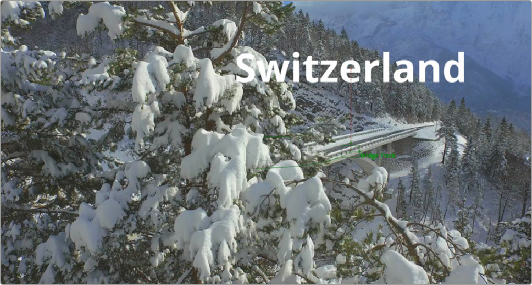
The text offset from the tracked motion path; the offset can be seen as a dotted red line in the viewer
Now, if we play through this clip, we can see the text moving along with the bridge.
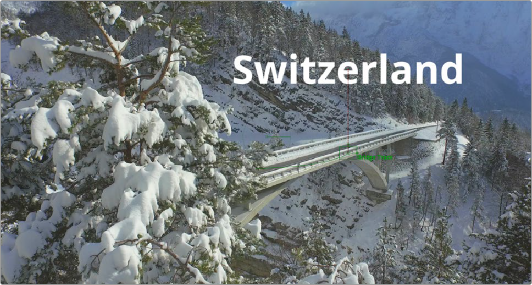
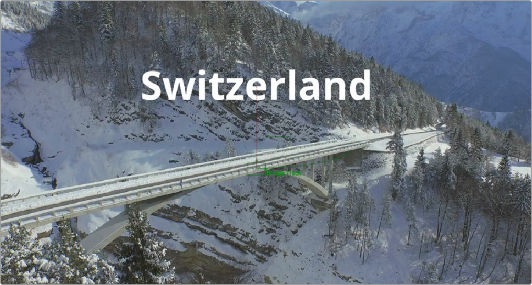

Two frames of the text being match moved to follow the bridge in the shot