< Previous | Contents | Next >
Transforming Cameras and Lights Using the Viewers
When the viewer is set to look through a 3D object in the scene, such as a camera or spotlight, the usual controls for panning and rotating the viewer will now directly affect the position of the camera or spotlight you’re viewing through. Here’s an example.
1 Right-click the viewpoint label, and choose a camera from the contextual menu. (Optional) If you’re in dual-viewer mode, you can load the camera you’ve selected in one viewer into the other viewer to see its position as you work.
2 Move the pointer into the viewer that’s displaying the camera’s viewpoint.
3 Hold the middle and left mouse buttons down and drag to zoom the viewer, or middle-click- drag to pan the viewer, or option-middle-click-drag to rotate the viewer, all while also moving the camera.
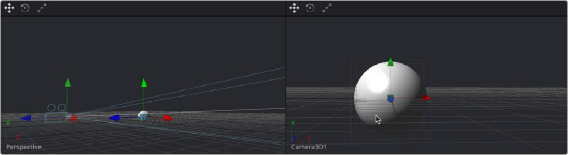
When a viewer is set to display the view of a camera or light, panning, zooming, or rotating the viewer (seen at right) actually transforms the camera or light you’re viewing through (seen at left)

It is even possible to view the scene from the perspective of a Merge3D or Transform3D node by selecting the object from the Camera > Others menu. The same transform techniques will then move the position of the object. This can be helpful when you are trying to orient an object in a certain direction.
Transparency Sorting
While generally the order of geometry in a 3D scene is determined by the Z-position of each object, sorting every face of every object in a large scene can take an enormous amount of time. To provide the best possible performance, a Fast Sorting mode is used in the OpenGL renderer and viewers.
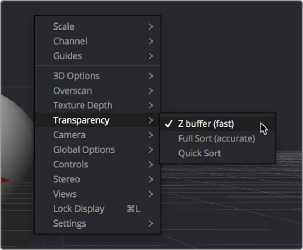
This is set by right-clicking in the viewer and choosing Transparency > Z-buffer. While this approach is much faster than a full sort, when objects in the scene are partially transparent it can also produce incorrect results.
The Sorted (Accurate) mode can be used to perform a more accurate sort at the expense of performance. This mode is selected from the Transparency menu of the viewer’s contextual menu. The Renderer3D also presents a Transparency menu when the Renderer Type is set to OpenGL. Sorted mode does not support shadows in OpenGL. The software renderer always uses the Sorted (Accurate) method.